






Best Gaming PC Upgrades in UAE: What Should You Upgrade First?
Introduction
You don't always need a new gaming PC when your current one starts struggling. A few upgrades can be enough. The problem is figuring out what actually needs changing. Spending money on a new GPU when the real issue is low RAM, for example, won't give you the result you're expecting.
A lot of gamers in the UAE build a PC around their budget and then upgrade it later. Maybe you bought a decent setup a few years ago and now some newer games aren't running as well. You could need a stronger graphics card, more RAM, or simply a faster SSD.
Before buying anything, take a look at the parts you already have. Find out which one is holding the PC back, then upgrade that part first. It can save you quite a bit of money and you may get a bigger improvement than you expected.

Why Gaming PC Upgrades Matter
A gaming PC can start feeling old long before every part inside it actually needs replacing.
That is something a lot of people miss. They notice lower frame rates, longer loading screens, or more stuttering and immediately assume the whole machine has reached the end of its life. Quite often, though, one part is doing most of the holding back.
Maybe the graphics card is struggling with newer games. Maybe the system still uses an older hard drive. Sometimes there simply is not enough RAM for a game, Discord, a browser, and everything else running in the background.
Fixing that weak point can change how the whole PC feels.
A sensible upgrade can mean smoother gameplay, shorter load times, more storage and better performance at the resolution you actually play at. It can also save a fair amount of money compared with buying an entirely new system.
The tricky part is deciding what deserves your money first.
How to Know What to Upgrade First
There is no universal answer here.
Two PCs can feel equally slow for completely different reasons, so it is worth spending a little time with your current setup before you start shopping for parts.
Check your gaming performance
Use the games you normally play as your starting point.
If they feel smooth in quieter areas but begin stuttering as soon as a scene becomes busy, pay attention to that. If the frame rate is poor whenever you increase the graphics settings, that tells you something too.
Loading behaviour is another clue. Waiting a long time for a game to open, a level to load, or textures to appear may point more toward storage than the graphics card.
You may also notice the PC becoming slow when several programs are open at once. For example, the game itself might run reasonably well until you open a browser, Discord, recording software or another application in the background. In that situation, memory could be part of the problem.
It is worth checking temperatures as well. A PC that suddenly becomes very loud during gaming or runs unusually hot might have a cooling issue that needs attention before anything else.
You are basically trying to find a pattern rather than reacting to one bad moment.
Check your current specifications
Once you have an idea of what is going wrong, take a look at the actual hardware in the PC.
Make a note of your processor, graphics card, RAM, storage, motherboard and power supply. It is also useful to know what case you have and what kind of cooling is installed.
Do not forget the monitor either.
A system built for 1080p gaming has very different demands from one trying to run games at 4K. The refresh rate matters as well. Trying to reach 144 FPS is obviously harder on the hardware than aiming for 60 FPS.
Knowing these details before buying anything makes the next step much easier.
It also prevents some common mistakes. A new graphics card may need more power than your current PSU can provide. A CPU may not fit the motherboard you already own. Even something as simple as the physical length of a graphics card can become an issue in a smaller case.
These are not exciting things to check, but they matter.
Avoid unbalanced upgrades
It is easy to get carried away with one part, especially a graphics card.
You see a faster GPU, compare benchmark numbers, and it suddenly feels like the obvious purchase. But if the rest of the PC is several generations behind, the result might not be as impressive as expected.
A much newer GPU paired with a weak processor can still struggle in CPU-heavy games. Similarly, adding hot, power-hungry hardware to a case with poor airflow can make the system noisier and less comfortable to use.
That is why balance matters.
You do not need the best processor, best GPU, and fastest RAM all at once. You just want the main parts to be reasonably matched so one of them is not constantly limiting everything else.
Graphics Card Upgrade
For gaming, the graphics card is often the upgrade that people notice the most.
It does a large share of the work involved in drawing what you see on screen, so when the GPU is struggling, the effect is usually pretty obvious.
A stronger graphics card can allow higher settings without destroying the frame rate. It can also make the move to 1440p or 4K much more realistic if that is something you are planning.
Still, a GPU upgrade should solve a real problem.
Buying a new card just because there is a newer one available is not always money well spent.
When should you upgrade your GPU?
Think about how your current card behaves in the games you care about.
If you constantly have to lower settings to keep things playable, that is a fairly clear sign. The same goes for newer games that struggle to reach a frame rate you are comfortable with.
A monitor upgrade can change the situation too.
Suppose your current PC is doing fine at 1080p, but you decide to move to a 1440p monitor. The system now has a lot more pixels to deal with, so a graphics card that once felt perfectly adequate may suddenly become the weak point.
High-refresh-rate gaming works in a similar way. A 144 Hz or 165 Hz screen is most useful when the PC can actually produce high frame rates. If it cannot, the GPU may be one of the parts worth looking at.
None of these things automatically means you need a new graphics card tomorrow. They simply give you a reason to check whether the current one is the part holding performance back.
What to check before upgrading your GPU
Before buying a graphics card, make sure the rest of the PC is ready for it.
Start with the power supply. Look at its wattage, age and available power connectors. A newer card may draw more power than your old one, and that is not something you want to discover after it arrives.
Then check the space inside the case.
Modern GPUs can be surprisingly long and thick. Some take up several expansion slots, so it is worth measuring the available room instead of assuming everything will fit.
Cooling matters as well. More powerful hardware usually means more heat. If your case already has weak airflow, dropping in a hotter graphics card may make temperatures and fan noise worse.
And finally, think about what you are buying the card for.
Someone playing competitive games at 1080p does not need the same GPU as someone trying to run demanding single-player games at 4K. Your monitor, favourite games and target frame rate should have more influence on the decision than simply choosing the most expensive option you can afford.
The best upgrade is the one you will actually make use of.

RAM Upgrade
RAM is one of those parts you barely think about when there is enough of it. The problem only becomes obvious when there is not.
A game may run perfectly well on its own, then you open Discord, Chrome, a launcher, maybe some recording software, and suddenly the whole system feels heavier. Apps take longer to switch between, small stutters start appearing, and the PC feels busier than it should.
That is where a RAM upgrade can help.
For a lot of gaming PCs, 16GB is still a reasonable amount. It is usually enough for gaming and normal day-to-day use. Going to 32GB starts to make more sense if you are streaming, recording gameplay, editing video, or simply leaving a lot of apps open while you play.
More RAM is not really about chasing a higher number. If your system already has enough, adding more may not change much. The benefit appears when the PC is regularly running short on memory.
Before buying anything, check the motherboard. You need to know whether it uses DDR4 or DDR5, how many slots are available, and what speeds and total capacity it supports. A matched kit is normally easier to deal with than mixing random sticks from different brands or speeds.
SSD Storage Upgrade
A storage upgrade can change the way a PC feels without changing the frame rate at all.
That sounds strange at first, but anyone who has moved from an old hard drive to an SSD usually notices it straight away. Windows loads faster, games open sooner, files respond more quickly, and there is simply less waiting around.
For gaming, this matters more than it used to because modern titles are huge. A smaller drive that seemed fine a few years ago can now disappear under two or three large games.
If your motherboard supports NVMe storage, it is usually a good place to start. NVMe drives fit directly onto the motherboard, do not need separate cables, and offer very fast performance.
Older systems may not have that option, and that is fine. A SATA SSD is still a huge improvement over a mechanical hard drive. On an ageing PC, it can easily be one of the upgrades you notice most in everyday use.
It probably will not turn 60 FPS into 100 FPS, but it can make the computer feel much less old.
Processor Upgrade
The CPU tends to get less attention than the graphics card, even though it has a major effect on how the system behaves.
Games depend on the processor for a lot of work happening in the background. Game logic, physics, AI, background processes, streaming tasks and plenty of other jobs all pass through the CPU.
This is why a powerful GPU can still feel disappointing when paired with a processor that is struggling to keep up.
You may notice it in CPU-heavy games where the frame rate is inconsistent rather than simply low. Busy areas can stutter, the CPU may sit close to full usage, and the GPU might still have performance left unused.
Streaming or editing makes this even easier to notice because those workloads place additional demand on the processor.
The annoying part is that upgrading a CPU is not always as simple as replacing one chip with another.
The socket has to match. The motherboard chipset needs to support the processor. Sometimes a BIOS update fixes the compatibility issue, but sometimes the motherboard itself is too old.
That is why it is worth checking the exact board model before deciding on a CPU. Otherwise, a fairly simple upgrade can turn into a new processor, motherboard and possibly new RAM as well.
Cooling Upgrade
Not every slow gaming PC needs faster hardware.
Sometimes it just needs to breathe properly.
If the CPU or graphics card gets too hot, it may reduce its speed to protect itself. You can end up with a perfectly capable system that performs worse after twenty or thirty minutes of gaming simply because temperatures keep climbing.
The signs are usually easy to notice once you start paying attention. Fans get loud, the case feels very warm, or performance becomes less consistent during longer sessions.
The fix is not always an expensive cooler.
Dust can block airflow. A case may only have one weak intake fan. Old thermal paste can also become less effective over time. Even cable clutter in the wrong place can make airflow worse.
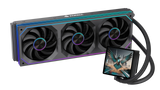
Sometimes cleaning the PC and adding a decent case fan is enough. A hotter processor may need a stronger air cooler, while some higher-end builds can benefit from an AIO liquid cooler.
The main point is to fix the actual cooling problem instead of buying a large cooler just because it looks impressive.
Power Supply Upgrade
The power supply is probably the least exciting upgrade in a gaming PC.
It also happens to be one of the parts you really do not want to get wrong.
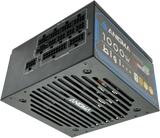
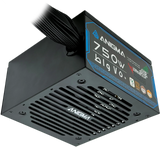
A new graphics card can draw much more power than the one it replaces. The same can be true of a processor upgrade. If the PSU was already close to its limit, adding more demanding hardware can create problems.
Wattage is the obvious thing to check, but it is not the only thing that matters.
The PSU also needs the correct connectors, and the quality of the unit matters a lot more than people sometimes realise. Two power supplies with the same wattage rating are not automatically equal.
If your current unit is very old, from an unknown brand, or was only just powerful enough for the original build, it is worth reviewing before a major upgrade.
Leaving a little spare capacity also makes life easier later. You do not want to replace the PSU every time you decide to change another part.
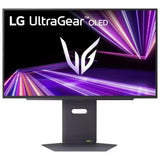
Monitor Upgrade
Sometimes there is nothing particularly wrong with the PC.
The screen is the part holding the experience back.
If your system can regularly produce 120 or 150 FPS but the monitor only refreshes at 60Hz, you are not really seeing everything the computer is capable of delivering.
A higher refresh rate display can make motion feel much smoother, especially in fast competitive games.
Resolution changes the experience in a different way. Moving from 1080p to 1440p gives you a noticeably sharper image without being as demanding as 4K. A 4K monitor can look excellent, but it makes much more sense when the graphics card has enough performance to drive it properly.
When looking at a gaming monitor, refresh rate is only part of the story.
Panel quality, response behaviour, resolution, adaptive sync, screen size and colour performance all matter too.
The right monitor depends on what you actually play. A competitive shooter player may care mostly about refresh rate and response time. Someone who spends most of their time in slower single-player games may care much more about picture quality.
Case and Airflow Upgrade
A PC case can quietly become a problem as the rest of the system gets upgraded.
The case that comfortably fitted your original graphics card might be too small for a newer model. The front panel may restrict airflow. There may not be enough room for additional fans or a larger CPU cooler.
That is usually when a case upgrade starts making sense.
A better case can give you more room to work, better ventilation and cleaner cable routing. It can also save you a lot of frustration the next time you replace a component.
You do not need an enormous case for a good build. A well-designed mid-tower with enough clearance and sensible airflow is often more useful than a huge case with poor ventilation.
The important thing is that cool air can get in, hot air can get out, and your components actually fit without being squeezed together.
Best Upgrade Order for Most Gamers
There is no universal upgrade order.
It depends entirely on what is wrong with the PC you already have.
If the frame rate is poor but the rest of the system feels fine, the GPU is usually the first part worth checking. If everything feels sluggish, including Windows and basic multitasking, RAM or storage might actually make a bigger difference.
Cooling and power should be looked at before you install anything significantly more demanding. A new graphics card is not much use if the power supply cannot support it or the case turns into an oven once you start gaming.
CPU upgrades come with more compatibility questions, so I would usually treat them as a more planned upgrade rather than an impulse purchase.
After that, the monitor and accessories become more about improving the experience than fixing performance.
There is no reason to follow a fixed list if your PC is telling you something different.
Common Upgrade Mistakes to Avoid
One of the easiest mistakes is buying first and checking compatibility afterwards.
It happens all the time. Someone finds a graphics card at a good price, orders it, and then discovers that it is too long for the case or needs power connectors the PSU does not have.
CPU upgrades can go the same way. A processor may look like the obvious replacement until you realise the motherboard does not support it.
Another mistake is putting nearly the entire budget into one component.
A high-end graphics card looks great in benchmarks, but if it is paired with an old processor, limited RAM and poor cooling, the whole build can still feel uneven.
Airflow is often ignored too. Faster hardware tends to produce more heat, and the case setup that worked perfectly with the original components may no longer be enough after an upgrade.
It also helps to think one upgrade ahead. A slightly larger PSU, a motherboard with another M.2 slot, or a case with more GPU clearance can save money later.
Should You Upgrade or Buy a New Gaming PC?
Sometimes the answer is obvious.
If your PC is still based on a fairly modern platform and only needs a better graphics card or more storage, replacing the entire system would be overkill.
Upgrading makes sense when most of the existing parts are still useful.
The decision becomes harder when several things need replacing at once.
A new CPU might need a new motherboard. That motherboard may need different RAM. The new GPU might need a stronger power supply, and the old case may not have enough room for it anyway.
At that point, you are basically rebuilding the whole machine one part at a time.
That is usually where a new PC starts to make more sense.
Instead of asking whether the computer is old, it is more useful to ask how much of it you can realistically keep. If most of the system can stay, upgrade it. If nearly everything needs to go, starting fresh can be the cleaner option.
Final Thoughts
The best gaming PC upgrades in UAE are not necessarily the newest or most expensive parts.
They are the upgrades that fix the problem you actually have.
Low FPS usually points you toward the graphics side of the system. Slow loading suggests storage. Stuttering while several programs are open may be memory-related. High temperatures mean cooling deserves attention before anything faster gets added.
That is a much better way to upgrade than replacing components just because newer versions exist.
At Anigma, you can explore gaming PCs, PC components, gaming monitors, custom PC build options, and accessories depending on whether your current setup only needs a few changes or it is time to build something new.
FAQs
What is the best first upgrade for a gaming PC?
There is no automatic answer, but the graphics card is often the first part to look at when the main issue is low FPS or poor graphics performance. If the PC is slow in other ways, another upgrade may make more sense first.
Is a RAM upgrade good for gaming?
It can be very useful when the system does not have enough memory. The difference is usually more noticeable when you play games while running browsers, Discord, streaming tools, or other apps in the background.
Does an SSD improve gaming performance?
An SSD generally does not create a big FPS increase. What it does do is reduce loading times, make Windows start faster, and improve the way the system responds during normal use.
Should I upgrade my CPU or GPU first?
Look at which component is actually limiting the games you play. If the graphics card is struggling, the GPU is probably the better choice. If the processor is constantly near full usage while the GPU has room left, the CPU may be the bigger problem.
Can I upgrade a prebuilt gaming PC?
In many cases, yes. The main thing is checking what is actually inside the system. Some prebuilts use standard parts, while others have unusual cases, power supplies, or motherboards that can make upgrades more restrictive.
شارك:


